How to Create a Yearly Calendar in Excel (Free Template)
How to Create a Yearly Calendar in Excel (Free Template)Planning a full year can get complicated when appointments, deadlines, meetings, holidays, and personal events are scattered across different apps and notebooks. An Excel calendar template gives you a simpler way to bring everything into one place. Instead of manually drawing rows, columns, and dates, you can start with a ready-made yearly planner and customize it for your work. In this guide, you’ll learn how to use an Excel calendar, switch between yearly, monthly, and weekly views, add your own events and holidays, and prepare the finished calendar for printing or digital use.
Quick Answer
An Excel calendar is useful when you want a flexible yearly planner that you can edit, print, and reuse.
A ready-made Excel calendar template eliminates most of the tedious setup work, while monthly and weekly views make it easier to manage detailed schedules.
For a practical starting point, use our Calendar Template Excel Template and customize the dates, events, holidays, and formatting to fit your workflow.
Why Use Excel for a Calendar?
Excel may be best known for spreadsheets and data analysis, but it also works surprisingly well as a planning tool. A calendar created in Excel can combine the familiar structure of a traditional calendar with the flexibility of a spreadsheet.
1. You can customize it around your work
A standard paper calendar has a fixed layout. With Excel, you can change the structure to match the way you actually work.
For example, you can add:
- Project deadlines
- Client meetings
- Team events
- Employee schedules
- Content publishing dates
- Vacation days
- Important reminders
- Personal appointments
You can also adjust column widths, row heights, fonts, and formatting without having to redraw the entire calendar.
2. You can keep different planning levels together
A good yearly planner should help you move between the big picture and the details.
A yearly view lets you see major deadlines and important dates across the entire year. A monthly calendar gives you more space for appointments and tasks. A weekly view is useful when you need to plan individual workdays.
Keeping these views together makes it easier to answer questions such as:
What does my month look like?
and:
What do I need to accomplish this week to stay on track?
3. Excel works well for both digital and printed planning
You can use your calendar directly on your computer, save a copy for future planning, or print selected pages for your desk or office.
This flexibility is particularly useful for professionals who switch between digital planning and paper notes during meetings.
Why Manually Creating an Excel Calendar Is a Bad Idea
Creating a calendar from scratch sounds easy until you start entering dates.
You need to create the correct number of rows and columns, arrange weekdays, enter dates, account for different month lengths, and make sure the layout remains consistent. If you want a full-year calendar, you may need to repeat this process 12 times.
Then there is the formatting.
You may spend additional time adjusting:
- Cell sizes
- Borders
- Weekday labels
- Month headings
- Font sizes
- Page breaks
- Print areas
- Holiday formatting
A small mistake can also create a bigger problem. One incorrect date can make an entire planning sheet unreliable.
That is why starting with an Excel calendar template is usually more efficient than building everything manually.
Instead of spending your first hour designing the calendar, you can spend that time actually planning your work.
Use a Ready-Made Calendar Template
A ready-made calendar template provides the basic structure so you can focus on customization.
Our Calendar Template Excel Template is designed around three useful planning levels:
Yearly View
The yearly view gives you a high-level overview of the entire year.
Use it for:
- Annual goals
- Major project deadlines
- Important business dates
- Vacation planning
- Quarterly milestones
- Conferences and events
This is the best view when you want to understand how your workload is distributed throughout the year.
Monthly Calendar
The monthly calendar gives you more room for individual events and deadlines.
You can use each month to track:
- Meetings
- Deliverables
- Client deadlines
- Team activities
- Marketing campaigns
- Content schedules
For many professionals, the monthly view will become the main working area of the planner.
Weekly View
A weekly view is useful when your schedule requires more detail.
For example, instead of simply writing “Project report” on a monthly calendar, you can use the weekly view to break the work into smaller tasks:
- Monday — Collect data
- Tuesday — Analyze results
- Wednesday — Draft report
- Thursday — Review
- Friday — Submit
This creates a simple connection between long-term planning and daily execution.
How to Customize Your Excel Calendar
Once you have your basic calendar, customization is straightforward.
Step 1: Add Your Important Dates
Start by entering the dates that matter most to your work.
For example:
| Date | Event | Category |
|---|---|---|
| January 15 | Project Kickoff | Project |
| February 5 | Client Review | Meeting |
| March 20 | Report Deadline | Deadline |
| April 10 | Team Training | Internal |
Keeping event descriptions short makes the calendar easier to scan.
Instead of writing:
Final version of the annual marketing performance report must be completed and submitted
use:
Annual Marketing Report — Due
The shorter version is easier to read in a calendar cell.
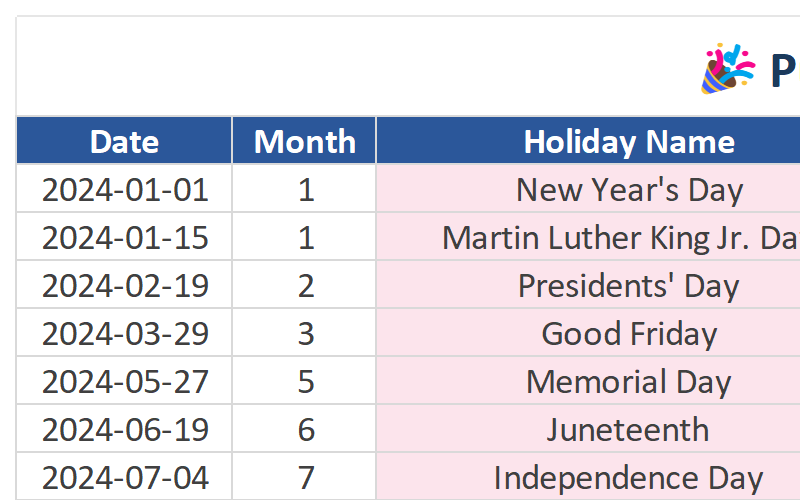
Step 2: Add Holidays
If you use your calendar for work planning, add relevant holidays and company days off.
You may want to include:
- Federal holidays
- Company holidays
- Office closures
- Vacation periods
- Personal days
This can prevent you from accidentally scheduling important work when your team or clients are unavailable.
Step 3: Highlight Different Types of Events
Excel’s formatting tools make it easy to distinguish between different categories.
For example, you could use different formatting for:
- Meetings
- Deadlines
- Holidays
- Personal events
- Important milestones
The goal is not to make the calendar visually complicated. The goal is to let you understand your schedule at a glance.
A useful rule is:
Use formatting to communicate information, not simply to decorate the spreadsheet.
Step 4: Add Notes Where Necessary
Some events need additional context.
If a calendar cell becomes too crowded, keep the event name short and use a note or comment for additional information.
For example:
Client Presentation
Then keep the meeting link, contact information, or preparation notes elsewhere rather than filling the calendar with text.
Practical Ways to Use a Yearly Planner at Work
A calendar becomes much more useful when it is connected to a specific workflow.
Project Management
Use the yearly view to identify major milestones, then move into monthly and weekly views for execution.
Content Planning
Content creators can use the calendar to schedule:
- Blog posts
- Newsletter campaigns
- Social media content
- Product launches
- Seasonal promotions
Team Planning
Managers can use a shared calendar to track:
- Team meetings
- Training sessions
- Employee vacations
- Project milestones
- Company events
Personal Productivity
You can also combine professional and personal planning when appropriate.
For example, mark major work deadlines alongside vacations or appointments. This makes it easier to see potential scheduling conflicts before they become problems.
How to Print Your Excel Calendar
A digital calendar is convenient, but sometimes a printed planner is easier to reference during meetings or when working away from your computer.
Before printing, check the following settings.
Choose the Right Orientation
A monthly calendar often works well in landscape orientation because it gives the weekday columns more horizontal space.
Set the Print Area
Do not automatically print the entire worksheet.
Select the calendar area you actually need and define it as the print area. This can prevent blank pages and unnecessary spreadsheet content from appearing in the final document.
Check Page Scaling
Use Print Preview before printing.
Make sure:
- The entire calendar fits on the page.
- Text is large enough to read.
- No important columns are cut off.
- Month headings are visible.
- Page breaks occur in sensible places.
Consider Printing Only What You Need
You do not always need to print the entire year.
For example, you might print the yearly overview once and print individual monthly calendars only when you need them.
This keeps your paper planner easier to manage.
Tips for Getting More Value From an Excel Calendar
A calendar works best when it stays simple.
Here are several practical habits worth adopting:
- Keep event names short.
Use keywords that you can recognize immediately. - Update the calendar regularly.
A planner becomes unreliable if important changes are left out. - Separate major deadlines from routine tasks.
Your calendar should emphasize dates that affect your schedule. - Use consistent formatting.
If one type of event always uses the same formatting, you can identify it faster. - Review the yearly view regularly.
A quick monthly review can reveal overloaded periods before they become problems. - Keep a backup copy.
Save a clean version of your template before making major changes.
Frequently Asked Questions
Can I create a yearly calendar in Excel?
Yes. Excel can be used to create yearly, monthly, and weekly calendars. However, creating a complete calendar manually requires considerable formatting and date-entry work. Starting with an Excel calendar template is usually faster.
What is the difference between a yearly planner and a monthly calendar?
A yearly planner provides a high-level overview of the entire year, while a monthly calendar gives you more space to manage individual appointments, deadlines, and events.
Using both views together lets you plan long-term goals while still managing day-to-day work.
Can I customize an Excel calendar template?
Yes. You can typically customize the dates, event descriptions, formatting, layout, and other elements of an editable Excel template.
Can I print an Excel calendar?
Yes. Excel calendars can be printed, but you should check the print area, page orientation, scaling, and page breaks before printing.
Is an Excel calendar useful for work planning?
Yes. An Excel calendar can be particularly useful for project deadlines, meetings, content schedules, team events, holidays, and annual planning because it combines a visual calendar with the flexibility of a spreadsheet.
Final Thoughts
You do not need to spend hours drawing cells and entering dates to build a useful yearly planner.
An Excel calendar template gives you a ready-made structure that you can adapt to your own workflow. Use the yearly view for big-picture planning, the monthly calendar for deadlines and events, and the weekly view when you need more detailed scheduling.
If you want to start with a ready-to-use template instead of building your calendar from scratch, check out the Calendar Template Excel Template from Use Office Toolkit and customize it for your next year of planning.