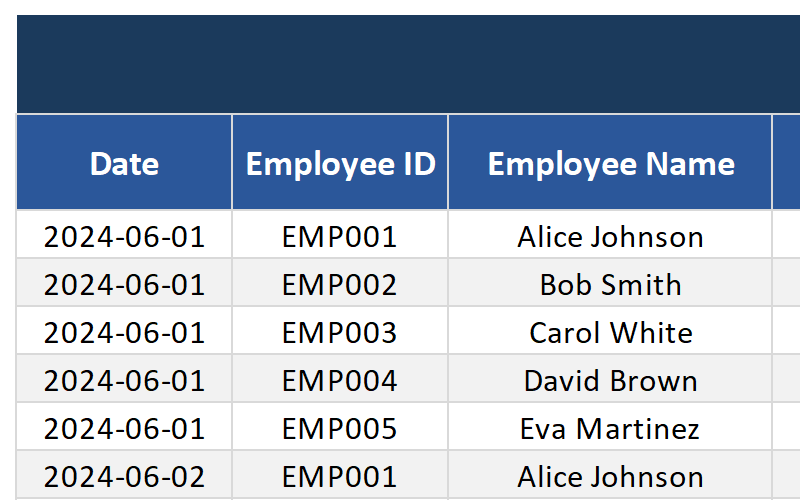
Employee Schedule Template in Excel: How to Create and Manage Staff Schedules
Creating a staff schedule can quickly become a time-consuming task when you have multiple employees, different shifts, days off, and changing availability to manage. An employee schedule template in Excel gives you a simple way to organize shifts, assign employees, and keep your team on the same page. Instead of building a schedule from scratch every week, you can use a reusable employee scheduling template to plan shifts, track working hours, and make last-minute changes more efficiently.
Quick Answer
An employee schedule template is a ready-made spreadsheet that helps managers organize employee shifts, working hours, days off, and assignments.
Excel is particularly useful because you can customize the schedule for different teams, shift patterns, and business needs.
A reusable staff schedule template can save time each week and provide employees with a clear view of when and where they are expected to work.
Why Use an Employee Schedule Template?
Employee scheduling may look simple when you have only a few employees. However, the process becomes more complicated as your team grows.
You may need to consider:
- Employee availability
- Different shift times
- Days off
- Vacation requests
- Part-time and full-time employees
- Overtime
- Weekend coverage
- Different departments or locations
- Changes caused by unexpected absences
Creating a new spreadsheet every week can lead to unnecessary repetitive work.
An employee schedule template gives you a consistent starting point. Instead of redesigning the spreadsheet, you can update the dates, employees, and shifts.
1. Save Time
A reusable template eliminates much of the basic formatting work.
Once your schedule structure is ready, you can duplicate it for the following week or month and update only the information that has changed.
For managers who create schedules every week, this small improvement can save a significant amount of administrative time over the long term.
2. Make Shifts Easier to Understand
A well-designed staff schedule should answer three questions quickly:
- Who is working?
- When are they working?
- What shift or role are they assigned to?
A clear spreadsheet layout makes this information easier for employees to find without having to read through long messages or emails.
3. Reduce Scheduling Mistakes
Manual scheduling makes it easy to accidentally assign overlapping shifts, forget a day off, or leave a busy period understaffed.
An Excel-based schedule does not automatically solve every scheduling problem, but it gives you a structured place to review the information before publishing the final schedule.
What Should an Employee Scheduling Template Include?
The right structure depends on your business, but a practical employee schedule template should include the information managers need to make scheduling decisions.
A basic template can include:
| Employee | Monday | Tuesday | Wednesday | Thursday | Friday | Saturday | Sunday |
|---|---|---|---|---|---|---|---|
| Alex | 9 AM–5 PM | Off | 9 AM–5 PM | 9 AM–5 PM | 9 AM–5 PM | Off | Off |
| Jamie | 1 PM–9 PM | 1 PM–9 PM | Off | 1 PM–9 PM | Off | 9 AM–5 PM | 9 AM–5 PM |
| Taylor | Off | 9 AM–5 PM | 9 AM–5 PM | Off | 1 PM–9 PM | 1 PM–9 PM | Off |
This simple layout already provides a useful weekly overview.
Depending on your needs, you can add columns for:
- Job title
- Department
- Location
- Shift type
- Total hours
- Breaks
- Notes
- Manager approval
For larger teams, separating employees by department or role can make the schedule easier to manage.
How to Create an Employee Schedule in Excel
If you do not already have a scheduling system, Excel is a practical place to start.
Step 1: List Your Employees
Create a list of employees who need to be scheduled.
Include basic information such as:
- Employee name
- Role
- Department
- Employment type
Avoid putting unnecessary personal information into a shared scheduling spreadsheet.
Step 2: Add the Schedule Dates
Create columns for the days you want to schedule.
For a weekly schedule, this might be Monday through Sunday.
For a monthly schedule, you can organize the dates across the worksheet or create separate weekly sections.
A weekly format is usually easier to read when employees need to check their upcoming shifts quickly.
Step 3: Enter Shift Times
Add each employee’s assigned shift.
For example:
- 8:00 AM–4:00 PM
- 9:00 AM–5:00 PM
- 1:00 PM–9:00 PM
- Off
Keep the format consistent throughout the spreadsheet.
If one employee’s shift is written as “9-5” while another is written as “09:00 AM–05:00 PM,” the schedule becomes harder to scan.
Step 4: Add Color Coding
Color coding can make a busy schedule much easier to understand.
For example, you could use different formatting for:
- Morning shifts
- Afternoon shifts
- Night shifts
- Days off
- Training
- Vacation
- Meetings
Do not use too many colors. A simple system with a few consistent categories is easier for employees to remember.
Step 5: Check Coverage
Before publishing the schedule, review each day.
Ask:
- Are enough employees scheduled?
- Are critical roles covered?
- Are there overlapping assignments?
- Has anyone been scheduled on an unavailable day?
- Are there unusually long work periods?
- Are important shifts left uncovered?
This final review is one of the most important steps in the scheduling process.
How to Use an Employee Schedule Template More Efficiently
Once you have created your first schedule, do not start over every week.
Instead, keep a clean master copy of your template.
For each new scheduling period:
- Make a copy of the master template.
- Update the dates.
- Review employee availability.
- Add approved time off.
- Assign shifts.
- Check coverage.
- Review total hours.
- Share the completed schedule.
This creates a repeatable scheduling workflow.
If your business uses similar shift patterns every week, you can also create standard shift codes such as:
- M = Morning
- A = Afternoon
- E = Evening
- O = Off
You can then keep the full shift times in a separate reference section.
Employee Scheduling Examples
An employee scheduling template can be adapted to many different workplaces.
Retail
Retail managers may need to schedule employees around opening hours, peak shopping periods, weekends, and holidays.
A weekly staff schedule can make it easier to identify whether enough employees are available during busy periods.
Restaurants
Restaurants often have different staffing requirements for lunch, dinner, weekends, and special events.
A scheduling template can include both employee names and roles, such as:
| Employee | Role | Shift |
|---|---|---|
| Alex | Server | 11 AM–7 PM |
| Jamie | Cook | 2 PM–10 PM |
| Taylor | Host | 5 PM–10 PM |
Office Teams
Office managers can use an employee schedule for:
- Office coverage
- Reception schedules
- Hybrid workdays
- Team rotations
- Training sessions
Customer Support
Support teams may need schedules that cover different hours or time zones.
An Excel staff schedule can provide a simple visual overview of which employees are assigned to each period.
How to Track Employee Hours in Excel
If your template includes start and end times, you can also use Excel to calculate scheduled hours.
For example, if an employee works from 9:00 AM to 5:00 PM with a one-hour unpaid break, the scheduled working time is 7 hours.
A simple formula can calculate the duration:
=(End Time - Start Time) * 24
You can then subtract unpaid breaks when necessary.
However, calculated hours should be treated as a scheduling aid rather than a substitute for your company’s official payroll or timekeeping system.
Tips for Managing Staff Schedules
A good employee schedule is not just accurate. It should also be easy for employees to understand.
Keep the layout simple
Avoid putting too much information into one cell. Employees should be able to find their shift quickly.
Publish schedules consistently
Choose a regular time to publish the upcoming schedule so employees know when to check for updates.
Record changes clearly
If a shift changes after the schedule has been published, make the change easy to identify.
Keep a master template
Always maintain an untouched copy of your original employee scheduling template.
This prevents accidental formatting changes from becoming permanent.
Review the schedule before sharing it
A five-minute review can catch mistakes that might otherwise cause confusion later.
Employee Schedule Template vs. Scheduling Software
Excel is a good option for small teams and straightforward schedules, but it is not always the best solution for every organization.
| Feature | Excel Template | Scheduling Software |
|---|---|---|
| Customization | High | Usually high |
| Setup cost | Low | Varies |
| Manual scheduling | Yes | Often reduced |
| Automatic notifications | Limited | Common |
| Employee self-service | Limited | Often available |
| Complex scheduling | Can become difficult | Usually better |
| Small teams | Excellent fit | May be unnecessary |
For a small business or team with relatively predictable schedules, an Excel staff schedule template can provide a simple and inexpensive solution.
As scheduling becomes more complex, dedicated software may offer features that are difficult to reproduce manually in a spreadsheet.
Frequently Asked Questions
What is an employee schedule template?
An employee schedule template is a reusable document, often created in Excel, that helps managers organize employee shifts, working hours, days off, and assignments.
Can I create an employee schedule in Excel?
Yes. Excel can be used to create weekly, monthly, or custom staff schedules. A template makes the process faster because the basic structure and formatting are already prepared.
What is the difference between a staff schedule and an employee schedule?
The terms are often used interchangeably. Both generally refer to a schedule showing when employees are expected to work and what shifts they have been assigned.
Can an Excel scheduling template calculate working hours?
Yes. Excel formulas can calculate the duration between start and end times and can be adjusted to account for unpaid breaks.
Is Excel good for employee scheduling?
Excel works well for small teams and relatively straightforward schedules. If you need automatic notifications, employee shift swaps, availability management, or complex scheduling rules, dedicated scheduling software may be more appropriate.
Final Thoughts
Creating an employee schedule does not have to mean rebuilding the same spreadsheet every week.
A well-designed employee schedule template gives managers a reusable framework for organizing shifts, checking coverage, tracking scheduled hours, and communicating work assignments clearly.
For small businesses and teams, Excel offers a practical combination of flexibility, familiarity, and low cost. Start with a simple weekly staff schedule template, customize it for your team’s shifts and roles, and keep a clean master copy for future schedules.
If you want to avoid building the spreadsheet from scratch, download our Employee Schedule Template from Use Office Toolkit and customize it for your team’s next scheduling period.
Employee Schedule Template in Excel: How to Create and Manage Staff Schedules
Creating a staff schedule can quickly become a time-consuming task when you have multiple employees, different shifts, days off, and changing availability to manage. An employee schedule template in Excel gives you a simple way to organize shifts, assign employees, and keep your team on the same page. Instead of building a schedule from scratch every week, you can use a reusable employee scheduling template to plan shifts, track working hours, and make last-minute changes more efficiently.
Quick Answer
An employee schedule template is a ready-made spreadsheet that helps managers organize employee shifts, working hours, days off, and assignments.
Excel is particularly useful because you can customize the schedule for different teams, shift patterns, and business needs.
A reusable staff schedule template can save time each week and provide employees with a clear view of when and where they are expected to work.
Why Use an Employee Schedule Template?
Employee scheduling may look simple when you have only a few employees. However, the process becomes more complicated as your team grows.
You may need to consider:
- Employee availability
- Different shift times
- Days off
- Vacation requests
- Part-time and full-time employees
- Overtime
- Weekend coverage
- Different departments or locations
- Changes caused by unexpected absences
Creating a new spreadsheet every week can lead to unnecessary repetitive work.
An employee schedule template gives you a consistent starting point. Instead of redesigning the spreadsheet, you can update the dates, employees, and shifts.
1. Save Time
A reusable template eliminates much of the basic formatting work.
Once your schedule structure is ready, you can duplicate it for the following week or month and update only the information that has changed.
For managers who create schedules every week, this small improvement can save a significant amount of administrative time over the long term.
2. Make Shifts Easier to Understand
A well-designed staff schedule should answer three questions quickly:
- Who is working?
- When are they working?
- What shift or role are they assigned to?
A clear spreadsheet layout makes this information easier for employees to find without having to read through long messages or emails.
3. Reduce Scheduling Mistakes
Manual scheduling makes it easy to accidentally assign overlapping shifts, forget a day off, or leave a busy period understaffed.
An Excel-based schedule does not automatically solve every scheduling problem, but it gives you a structured place to review the information before publishing the final schedule.
What Should an Employee Scheduling Template Include?
The right structure depends on your business, but a practical employee schedule template should include the information managers need to make scheduling decisions.
A basic template can include:
| Employee | Monday | Tuesday | Wednesday | Thursday | Friday | Saturday | Sunday |
|---|---|---|---|---|---|---|---|
| Alex | 9 AM–5 PM | Off | 9 AM–5 PM | 9 AM–5 PM | 9 AM–5 PM | Off | Off |
| Jamie | 1 PM–9 PM | 1 PM–9 PM | Off | 1 PM–9 PM | Off | 9 AM–5 PM | 9 AM–5 PM |
| Taylor | Off | 9 AM–5 PM | 9 AM–5 PM | Off | 1 PM–9 PM | 1 PM–9 PM | Off |
This simple layout already provides a useful weekly overview.
Depending on your needs, you can add columns for:
- Job title
- Department
- Location
- Shift type
- Total hours
- Breaks
- Notes
- Manager approval
For larger teams, separating employees by department or role can make the schedule easier to manage.
How to Create an Employee Schedule in Excel
If you do not already have a scheduling system, Excel is a practical place to start.
Step 1: List Your Employees
Create a list of employees who need to be scheduled.
Include basic information such as:
- Employee name
- Role
- Department
- Employment type
Avoid putting unnecessary personal information into a shared scheduling spreadsheet.
Step 2: Add the Schedule Dates
Create columns for the days you want to schedule.
For a weekly schedule, this might be Monday through Sunday.
For a monthly schedule, you can organize the dates across the worksheet or create separate weekly sections.
A weekly format is usually easier to read when employees need to check their upcoming shifts quickly.
Step 3: Enter Shift Times
Add each employee’s assigned shift.
For example:
- 8:00 AM–4:00 PM
- 9:00 AM–5:00 PM
- 1:00 PM–9:00 PM
- Off
Keep the format consistent throughout the spreadsheet.
If one employee’s shift is written as “9-5” while another is written as “09:00 AM–05:00 PM,” the schedule becomes harder to scan.
Step 4: Add Color Coding
Color coding can make a busy schedule much easier to understand.
For example, you could use different formatting for:
- Morning shifts
- Afternoon shifts
- Night shifts
- Days off
- Training
- Vacation
- Meetings
Do not use too many colors. A simple system with a few consistent categories is easier for employees to remember.
Step 5: Check Coverage
Before publishing the schedule, review each day.
Ask:
- Are enough employees scheduled?
- Are critical roles covered?
- Are there overlapping assignments?
- Has anyone been scheduled on an unavailable day?
- Are there unusually long work periods?
- Are important shifts left uncovered?
This final review is one of the most important steps in the scheduling process.
How to Use an Employee Schedule Template More Efficiently
Once you have created your first schedule, do not start over every week.
Instead, keep a clean master copy of your template.
For each new scheduling period:
- Make a copy of the master template.
- Update the dates.
- Review employee availability.
- Add approved time off.
- Assign shifts.
- Check coverage.
- Review total hours.
- Share the completed schedule.
This creates a repeatable scheduling workflow.
If your business uses similar shift patterns every week, you can also create standard shift codes such as:
- M = Morning
- A = Afternoon
- E = Evening
- O = Off
You can then keep the full shift times in a separate reference section.
Employee Scheduling Examples
An employee scheduling template can be adapted to many different workplaces.
Retail
Retail managers may need to schedule employees around opening hours, peak shopping periods, weekends, and holidays.
A weekly staff schedule can make it easier to identify whether enough employees are available during busy periods.
Restaurants
Restaurants often have different staffing requirements for lunch, dinner, weekends, and special events.
A scheduling template can include both employee names and roles, such as:
| Employee | Role | Shift |
|---|---|---|
| Alex | Server | 11 AM–7 PM |
| Jamie | Cook | 2 PM–10 PM |
| Taylor | Host | 5 PM–10 PM |
Office Teams
Office managers can use an employee schedule for:
- Office coverage
- Reception schedules
- Hybrid workdays
- Team rotations
- Training sessions
Customer Support
Support teams may need schedules that cover different hours or time zones.
An Excel staff schedule can provide a simple visual overview of which employees are assigned to each period.
How to Track Employee Hours in Excel
If your template includes start and end times, you can also use Excel to calculate scheduled hours.
For example, if an employee works from 9:00 AM to 5:00 PM with a one-hour unpaid break, the scheduled working time is 7 hours.
A simple formula can calculate the duration:
=(End Time - Start Time) * 24
You can then subtract unpaid breaks when necessary.
However, calculated hours should be treated as a scheduling aid rather than a substitute for your company’s official payroll or timekeeping system.
Tips for Managing Staff Schedules
A good employee schedule is not just accurate. It should also be easy for employees to understand.
Keep the layout simple
Avoid putting too much information into one cell. Employees should be able to find their shift quickly.
Publish schedules consistently
Choose a regular time to publish the upcoming schedule so employees know when to check for updates.
Record changes clearly
If a shift changes after the schedule has been published, make the change easy to identify.
Keep a master template
Always maintain an untouched copy of your original employee scheduling template.
This prevents accidental formatting changes from becoming permanent.
Review the schedule before sharing it
A five-minute review can catch mistakes that might otherwise cause confusion later.
Employee Schedule Template vs. Scheduling Software
Excel is a good option for small teams and straightforward schedules, but it is not always the best solution for every organization.
| Feature | Excel Template | Scheduling Software |
|---|---|---|
| Customization | High | Usually high |
| Setup cost | Low | Varies |
| Manual scheduling | Yes | Often reduced |
| Automatic notifications | Limited | Common |
| Employee self-service | Limited | Often available |
| Complex scheduling | Can become difficult | Usually better |
| Small teams | Excellent fit | May be unnecessary |
For a small business or team with relatively predictable schedules, an Excel staff schedule template can provide a simple and inexpensive solution.
As scheduling becomes more complex, dedicated software may offer features that are difficult to reproduce manually in a spreadsheet.
Frequently Asked Questions
What is an employee schedule template?
An employee schedule template is a reusable document, often created in Excel, that helps managers organize employee shifts, working hours, days off, and assignments.
Can I create an employee schedule in Excel?
Yes. Excel can be used to create weekly, monthly, or custom staff schedules. A template makes the process faster because the basic structure and formatting are already prepared.
What is the difference between a staff schedule and an employee schedule?
The terms are often used interchangeably. Both generally refer to a schedule showing when employees are expected to work and what shifts they have been assigned.
Can an Excel scheduling template calculate working hours?
Yes. Excel formulas can calculate the duration between start and end times and can be adjusted to account for unpaid breaks.
Is Excel good for employee scheduling?
Excel works well for small teams and relatively straightforward schedules. If you need automatic notifications, employee shift swaps, availability management, or complex scheduling rules, dedicated scheduling software may be more appropriate.
Final Thoughts
Creating an employee schedule does not have to mean rebuilding the same spreadsheet every week.
A well-designed employee schedule template gives managers a reusable framework for organizing shifts, checking coverage, tracking scheduled hours, and communicating work assignments clearly.
For small businesses and teams, Excel offers a practical combination of flexibility, familiarity, and low cost. Start with a simple weekly staff schedule template, customize it for your team’s shifts and roles, and keep a clean master copy for future schedules.
If you want to avoid building the spreadsheet from scratch, download our Employee Schedule Template from Use Office Toolkit and customize it for your team’s next scheduling period.