How to Track Employee Hours with an Excel Timesheet
Tracking employee hours accurately is essential for payroll, project management, and understanding labor costs. A well-designed timesheet template in Excel can make this process much easier by organizing daily clock-in and clock-out times, calculating total hours, and identifying overtime. Instead of relying on paper records or manually adding hours at the end of the month, an employee timesheet gives you a consistent system for recording and reviewing work hours. In this guide, you’ll learn how to use an Excel timesheet to track work hours, set basic time rules, and create a monthly summary.
Quick Answer
An Excel timesheet template provides a structured way to record employee start times, end times, breaks, regular hours, and overtime.
For small teams, Excel can be a practical alternative to paper timesheets because formulas can automatically calculate worked hours and reduce repetitive calculations.
A reusable employee timesheet can also help managers prepare monthly summaries and review labor costs before payroll processing.
1. Why Is Tracking Employee Hours Important?
Employee time tracking is more than simply recording when someone arrives at work and leaves.
Accurate time records can affect several areas of a business, including payroll, project costs, staffing decisions, and overtime management.
Payroll Accuracy
If employees are paid based on hours worked, inaccurate records can lead to incorrect payroll calculations.
For example, manually adding 20 or more working days for several employees creates many opportunities for arithmetic mistakes. A structured spreadsheet with formulas can reduce this repetitive work.
Project Cost Tracking
For businesses that work on multiple projects, employee hours can also help estimate the labor cost associated with each project.
For example, if an employee spends 32 hours working on Project A and 8 hours on Project B during a week, the business can use those records to understand how labor is being allocated.
This information can be useful when reviewing project profitability and future resource requirements.
Overtime Monitoring
Tracking hours also makes it easier to identify overtime.
If your business has specific overtime rules, an Excel timesheet can separate regular hours from overtime hours so managers can review them before payroll is finalized.
Important: Overtime and payroll rules vary by location and employment arrangement. An Excel timesheet should support your internal tracking process rather than replace professional payroll or legal advice.
2. Why Traditional Time Tracking Can Be a Problem
Many small businesses still use paper forms, notebooks, or manually maintained spreadsheets to record working hours.
These methods can work for very small teams, but problems become more likely as the number of employees or working days increases.
Paper Timesheets Are Easy to Lose
Paper records can be misplaced, damaged, or difficult to access when managers need them.
They also make it harder to search historical information.
Manual Calculations Take Time
Consider a month with 22 working days.
An employee may have different start times, end times, breaks, and overtime on different days. Adding all of those numbers manually at the end of the month can become tedious.
The risk is not only that the calculation takes time. A single incorrect entry can affect the final total.
Inconsistent Records Create Confusion
One employee might record:
9:00–17:00
while another writes:
9-5
and another writes:
8 hours
Although these may represent the same working period, inconsistent formats make spreadsheets harder to review.
A standardized employee timesheet template gives everyone the same structure.
3. Use an Excel Timesheet Template
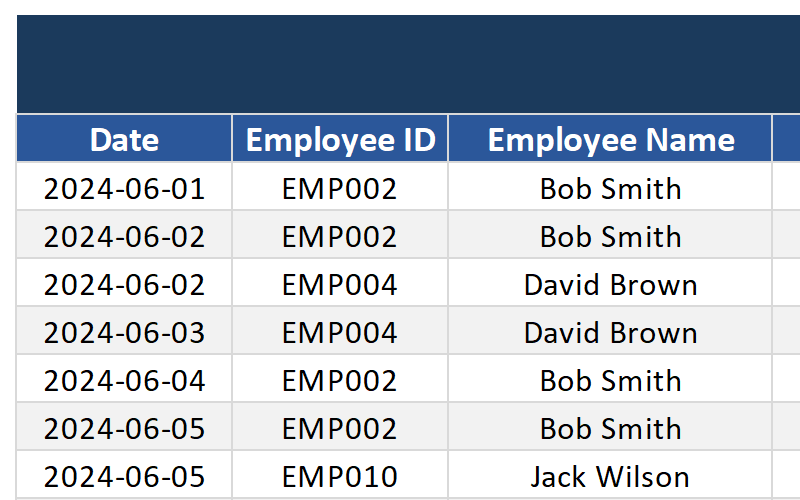
A ready-made timesheet template Excel file can provide the basic structure needed to record daily working hours without building the spreadsheet from scratch.
A practical template can include:
| Date | Employee | Start Time | End Time | Break | Regular Hours | Overtime |
|---|---|---|---|---|---|---|
| Jan 5 | Alex | 9:00 AM | 5:00 PM | 1 hr | 7 | 0 |
| Jan 6 | Alex | 9:00 AM | 6:00 PM | 1 hr | 8 | 1 |
| Jan 7 | Alex | 8:30 AM | 5:30 PM | 1 hr | 8 | 0 |
The exact columns can be adjusted according to your company’s workflow.
Daily Time Tracking
Employees enter their start and end times each day.
The spreadsheet can then calculate the elapsed working time.
For example:
Start: 9:00 AM
End: 5:00 PM
Break: 1 hour
The resulting working time is:
7 hours
Instead of manually calculating every row, an Excel formula can perform the calculation consistently.
Automatic Work-Hour Calculation
A simple Excel calculation for hours worked can be based on the difference between the end and start times, adjusted for breaks.
For example:
=(End Time-Start Time)-BreakWhen the result needs to be displayed as decimal hours, the calculation can be converted appropriately.
The exact formula depends on how your timesheet stores time values and how breaks are recorded.
Overtime Calculation
You can also create a separate column for overtime.
For example, if the standard daily work period is 8 hours, the spreadsheet can compare the calculated working time against that threshold.
Conceptually:
Overtime = MAX(0, Total Hours - Standard Hours)This keeps regular hours and overtime separate and makes the monthly summary easier to review.
4. How to Set Your Timesheet Rules
Before employees begin using a timesheet, define the rules clearly.
Otherwise, the spreadsheet may contain accurate numbers but still produce inconsistent results.
Define the Standard Workday
Decide how many hours count as a standard working day for your internal process.
For example:
Standard workday: 8 hours
Your template can then use this value when calculating regular hours and overtime.
Define Break Rules
Decide how breaks should be recorded.
For example:
- Fixed one-hour unpaid break
- Employee enters actual break duration
- Separate morning and afternoon breaks
The important thing is consistency.
Define Overtime Rules
If overtime is relevant to your organization, determine how it should be recorded and reviewed.
For example, you might distinguish between:
- Regular hours
- Overtime hours
- Weekend hours
- Holiday hours
Because employment and overtime requirements differ between jurisdictions, make sure your internal rules are consistent with applicable laws and company policies.
Use Consistent Time Formats
Choose one format and use it throughout the spreadsheet.
For example:
09:00 AM
is clearer than mixing:
9 AM
09:00
9:00
Consistency makes the timesheet easier to review and reduces data-entry confusion.
5. How to Create a Monthly Timesheet Summary
Daily records are useful, but managers often need a monthly overview.
A monthly summary can show:
| Employee | Regular Hours | Overtime | Total Hours |
|---|---|---|---|
| Alex | 160 | 6 | 166 |
| Jamie | 152 | 4 | 156 |
| Taylor | 168 | 8 | 176 |
This provides a quick snapshot of the month’s recorded hours.
Step 1: Total Regular Hours
Use Excel formulas such as SUM to add the regular-hours column.
Step 2: Total Overtime
Calculate the total overtime separately rather than combining it with regular hours.
This makes it easier to review additional labor costs.
Step 3: Calculate Total Hours
Add regular and overtime hours when you need a complete view of recorded working time.
Step 4: Review Unusual Entries
Before using the report for payroll or management decisions, look for:
- Missing clock-in times
- Missing clock-out times
- Unusually long shifts
- Duplicate entries
- Unexpected overtime
- Incorrect dates
A monthly summary is most useful when the underlying daily records have been checked.
6. Tips for Better Employee Time Tracking
A spreadsheet can only be effective if employees use it consistently.
Here are several practical tips.
Keep the Process Simple
If employees have to enter too much information every day, they may be more likely to make mistakes.
Record only the information you actually need.
Use One Template
Avoid allowing different employees or departments to create their own versions.
A standardized employee timesheet makes monthly reporting much easier.
Protect Formula Cells
If your template contains formulas for calculating hours, consider protecting those cells so employees do not accidentally overwrite them.
Review Timesheets Regularly
Do not wait until the end of the month to discover missing entries.
A quick weekly review can identify problems while they are still easy to correct.
Keep a Master Copy
Maintain a clean version of the original timesheet template Excel file.
Create a new copy for each month rather than modifying the master template directly.
Frequently Asked Questions
What is an employee timesheet?
An employee timesheet is a record of an employee’s working time, usually including start times, end times, breaks, total hours, and sometimes overtime.
Can Excel calculate employee work hours?
Yes. Excel can calculate elapsed time using formulas based on start and end times. Additional formulas can account for breaks and separate regular hours from overtime.
What should an Excel timesheet include?
A basic timesheet can include the date, employee name, start time, end time, break duration, regular hours, and overtime. Additional fields can be added for projects, departments, locations, or notes.
Can an Excel timesheet be used for payroll?
It can be used as a supporting record for payroll preparation, especially for small teams. However, businesses should verify calculations and follow their applicable payroll, employment, and record-keeping requirements.
How often should employee timesheets be reviewed?
Weekly reviews are often more practical than waiting until the end of the month. Regular checks can identify missing or unusual entries before they become difficult to correct.
Final Thoughts
Manually tracking employee hours does not have to be a time-consuming monthly task.
A well-structured employee timesheet template can provide a consistent way to record daily working hours, calculate regular time and overtime, and create a monthly summary. For small teams and straightforward workflows, Excel offers a flexible and familiar solution without requiring specialized scheduling software.
If you want to start tracking work hours without building a spreadsheet from scratch, download the Employee Timesheet Template from Use Office Toolkit. Customize the fields and work-hour rules for your team, then reuse the template each month to make time tracking simpler and more consistent.